Modern game libraries grow quickly. A few large open-world games, multiplayer titles, and launchers can fill a small SSD faster than expected.
The best setup is not always the most expensive drive. It is the setup that keeps your active games fast and your storage easy to manage.
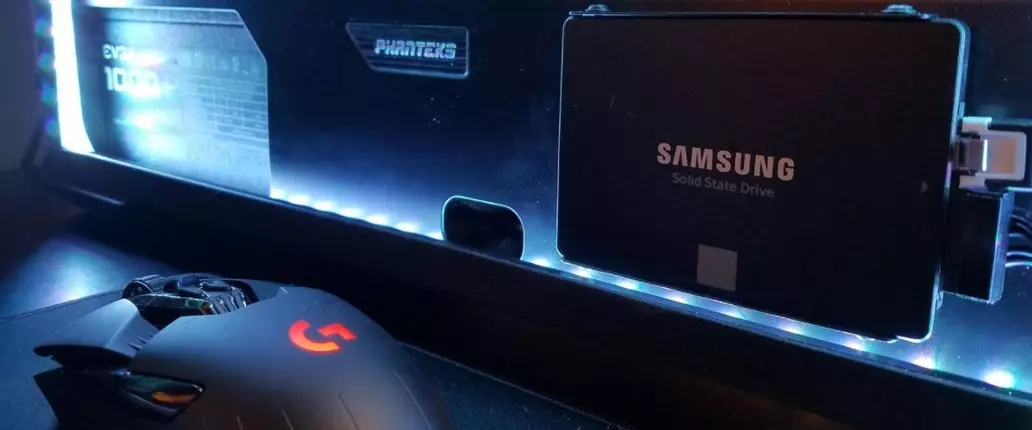
Split the OS and game storage if you can
A clean setup is:
| Drive | Use | | --- | --- | | Primary SSD | Windows, launchers, core apps, a few daily games | | Secondary SSD | Main game library | | External or older drive | Backups, recordings, installers, rarely played games |
This makes Windows easier to maintain and gives your game library room to grow.
Prioritize capacity before extreme speed
For most gaming use, moving from a hard drive to any decent SSD is the big jump. Moving from a good NVMe SSD to a top-end NVMe SSD is less noticeable in many games.
If the choice is between:
- A smaller, very fast SSD.
- A larger, reliable SSD.
Many gamers will be happier with the larger drive, especially if they rotate between multiple big games.
NVMe vs SATA, in practical terms
If your motherboard or laptop has a spare M.2 slot, NVMe is the obvious pick today, and in many markets the price difference over SATA has become small.
But keep expectations grounded:
- Hard drive to SATA SSD: transformative. Loading screens shrink, texture pop-in improves, Windows feels new.
- SATA SSD to mid-range NVMe: noticeable in installs, updates, and games built around fast streaming, modest elsewhere.
- Mid-range NVMe to flagship Gen4/Gen5 NVMe: benchmark-visible, often gameplay-invisible.
A SATA SSD is still a perfectly good home for a game library in an older PC with no M.2 slot. Do not pay for a new motherboard just to chase sequential numbers.
Two spec-sheet details matter more than peak speed for a games drive:
- DRAM or HMB support: budget drives without DRAM can slow down under sustained writes. For a library drive that mostly reads, this is tolerable; for your OS drive, prefer a drive with DRAM or at least HMB.
- QLC vs TLC flash: QLC drives are cheaper per terabyte but slow down sharply once their fast cache fills during huge installs or file copies. Fine for archives, less fun as your main drive.
Console storage has its own rules
If part of your library lives on a console, plan around the platform's requirements instead of generic SSD advice:
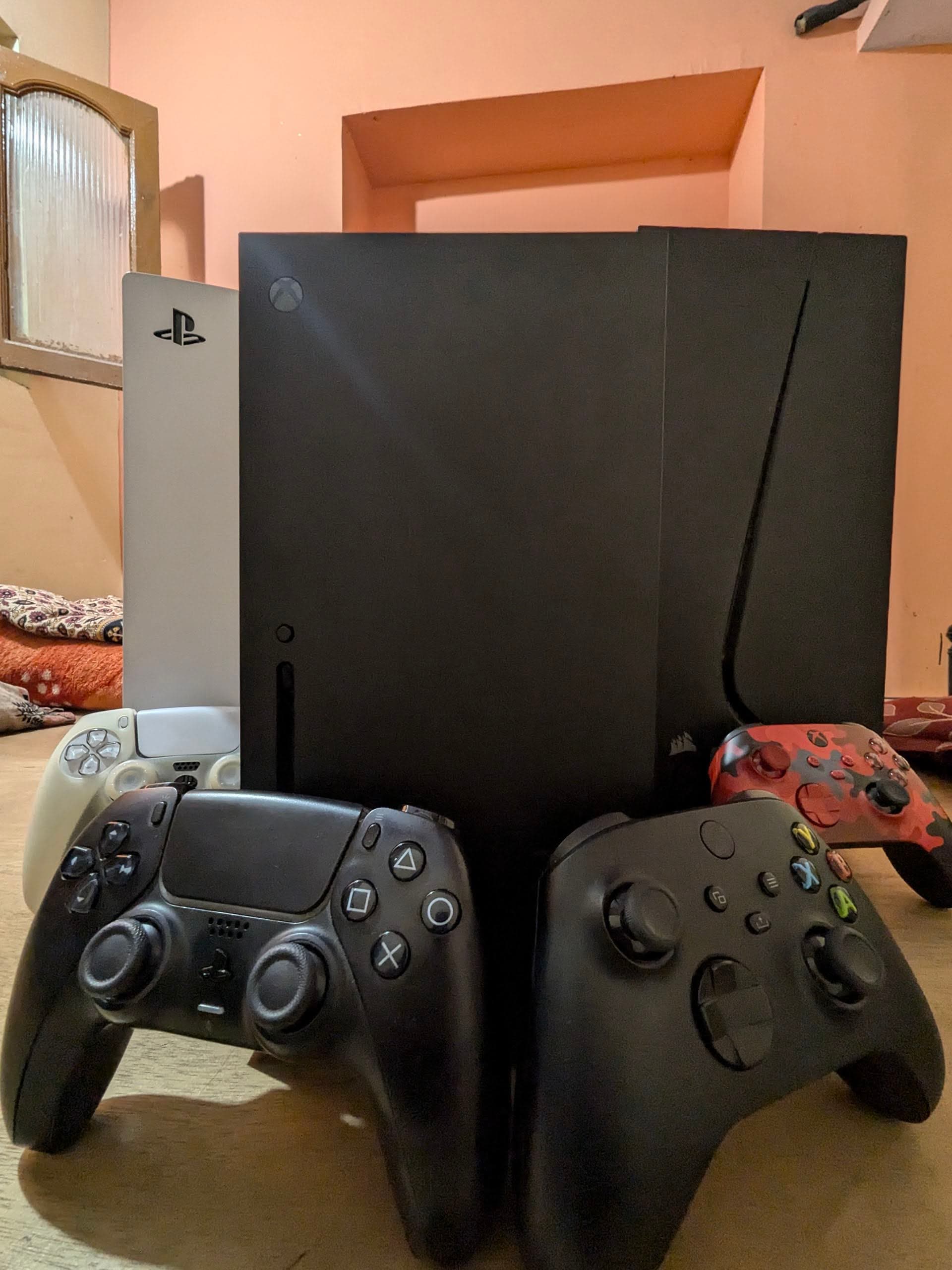
- PS5 requires a PCIe Gen4 NVMe drive (5,500 MB/s class recommended) with a heatsink for its internal expansion slot. PS5 games must run from internal storage or that expansion slot; a USB drive can only store them.
- Xbox Series X|S uses proprietary expansion cards for current-gen games. They cost more per terabyte, so many owners keep current-gen games internal and push backward-compatible titles to a USB drive.
- Both consoles happily run older-generation games from a decent USB SSD, which is the cheapest way to free internal space.
The pattern is the same as on PC: current, active games on the fast storage the platform demands, everything else on cheaper storage.
Keep some free space
Do not run an SSD completely full. Game updates, shader caches, Windows updates, and launcher temp files all need breathing room.
A practical habit is to keep at least 10 to 15 percent free when possible. If a drive is constantly full, updates become annoying and performance can become less consistent.
Put active games on SSD, archive the rest
You do not need every game on your fastest drive.
Use this rule:
- Competitive games and current single-player games: SSD.
- Games with long loading screens: SSD.
- Old games and rarely played titles: slower storage or archive.
- Screen recordings and raw clips: separate storage if possible.
This is especially useful when Indian pricing makes high-capacity SSDs a careful purchase.
Moving games is easier than re-downloading
You do not need to uninstall and re-download 100 GB games to reorganize. Every major launcher can move installed games between drives:
- Steam: Settings, Storage, select the game, then "Move". You can also create a second Steam library folder on the new drive so future installs land there by default.
- Xbox app on PC: each game's options include a move option between configured drives.
- Epic, GOG, and others: support varies; the reliable fallback is moving the folder and letting the launcher "verify" or "locate" the existing install, which skips the download.
On Indian broadband with FUP limits or slower evening speeds, moving instead of re-downloading is not just faster, it protects your data cap.
Watch laptop thermals
Gaming laptops can have limited cooling around the SSD slot. A high-performance NVMe drive may run hot during large installs, copies, or long sessions.
If you are upgrading a laptop:
- Check whether the laptop has a spare M.2 slot.
- Confirm supported SSD size and generation.
- Use the thermal pad or shield if the laptop includes one.
- Avoid blocking airflow during big downloads or installs.
Do not skip the boring backup step
An SSD failure is rare but absolute; recovery from a dead SSD is far harder than from a dying hard drive. Game files themselves are re-downloadable, so the real risk is everything around them:
- Save files for games without cloud saves.
- Mod folders and config tweaks you spent hours on.
- Recordings and screenshots.
Keep those on a second drive or synced to cloud storage. Losing a 150-hour save teaches this lesson permanently; a scheduled copy teaches it cheaply.
Final recommendation
For a large library, start with a reliable 1 TB or 2 TB SSD depending on budget and slot availability. Prefer TLC flash with DRAM or HMB for your primary drive, be honest about which games actually need fast storage, and keep saves backed up somewhere else. Choose capacity and consistency first, then chase top benchmark numbers only if your workload actually needs them.